Why Use Google Doc Links in Course Materials
Faculty use Google Docs embedded into their courses for everything from assignments, pages, discussions. The editing tools are more familiar and robust in Google Docs, and that they can save the Google Docs in their own file system.
They also like the functionality of Google Docs because it allows them to update one master doc and it can then update in every course. This is especially helpful when there are multiple courses being taught under one umbrella. The updates are dynamic, and show up in all places where it is embedded or linked.
As we will see, embedded documents inside LMS content are useful in some cases, but there are other, more straightforward options.
In a Google Doc that uses styles and a table of contents, we can link to specific parts of the same document in a way that makes things easier for instructors who need to update their materials. Learners also may find this easier, since it’s more readable, platform-agnostic, and more responsive on mobile devices.
Preparing the Google Doc
Use Headings and Styles
It’s always important when sharing Google Documents to use a heading structure to provide an outline of your course document. In this case, the links created by the Table of Contents will also create links to specific sections of the Google Doc.
To do this, use the Style menu to add section headings in a logical fashion. In our sample document, we use Heading 1, Heading 2, and Heading 3 to define our sections. It makes it accessible for screen readers and also will help us in our embedding links to specific sections.
For more information on making Google Docs accessible, see here.
Insert a Table of Contents
In the Google Doc, select Insert > Table of Contents
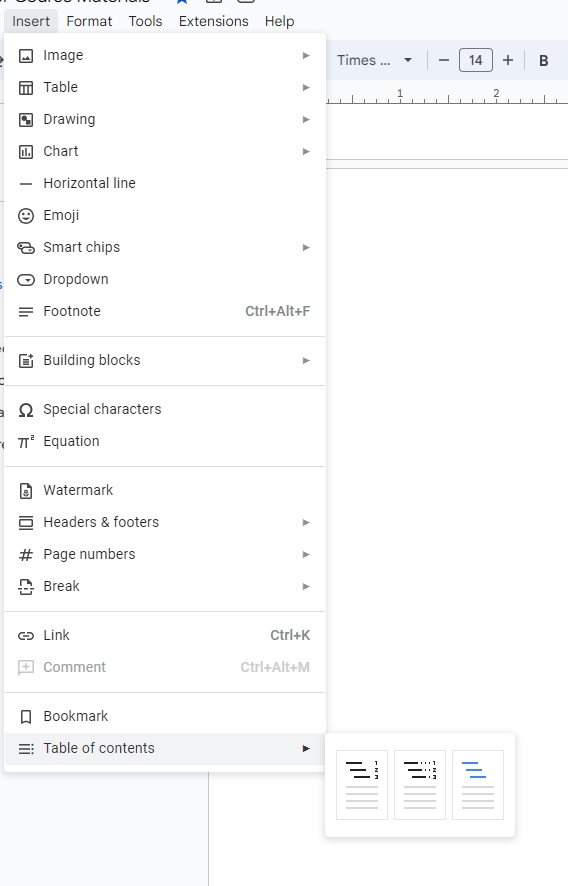
You will have a couple of options of what how the Table of Contents will appear. We will select the type without page numbers.
Publish to the Web
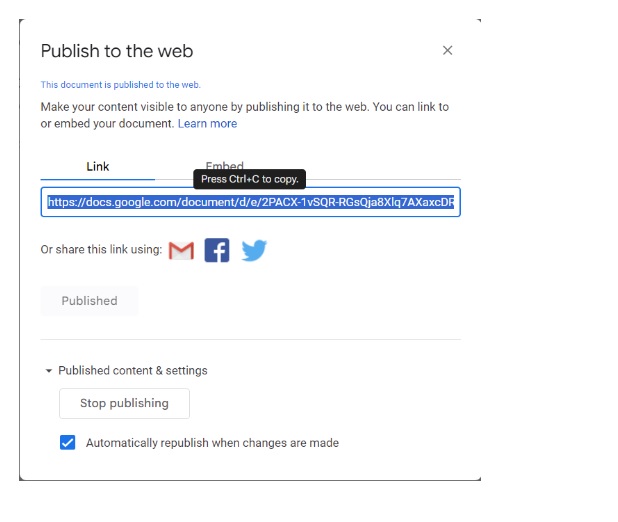
In the Google Doc, select File > Share > Publish to web
Links to Specific Sections of Google Docs
Go to the Table of Contents of your Google Doc and single-click over any of the entries. What will pop up are options to work with the link of that TOC entry. Use the first one that copies the link to that section of the Google Doc.
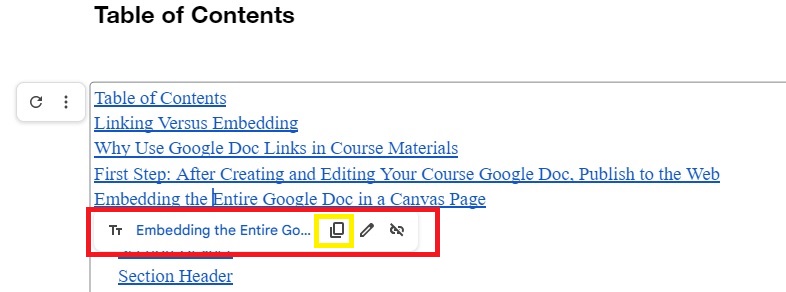
Here is the link to that section of the Google Doc.
Embedding the Entire Google Doc in a Canvas Page
Below are other anchor-type links generated from the table of contents inside of our Google doc. The links below will open up to a specific section of a larger Google Doc in a new tab. This has the usability advantage of leaving this page as-is, with a new page with opened to a specific section of a Google Doc course document.
Working with an Embedded Google Doc
In some use cases, embedding a Google Doc inside of a Canvas page can work well–shorter pieces of content, for example, or in order to keep students inside the LMS. Here is the Google Doc we are using embedded inside this page:
This option has some downsides, however. The embedded file inside a page can get confusing, and if you’re not inclined to use HTML to adjust the dimensions, you get what you get. It can get especially confusing in mobile devices. Scrolling a longer document may also get confusing.
Links to specific sections of a Google Doc that open in a new tab can be a more useful option, especially when using a single large Google Doc for course materials, or for materials that are shared across multiple courses and will need to be updated from time to time.
 Daniel Nester
You must be logged in to post a comment.